Using the Zone Editor in cPanel
cPanel provides the ability to maintain your DNS records via the Zone Editor. The following instructions provide the steps to create an A record.
NOTE: cPanel’s Zone Editor functionality will only work if your domain is pointed to our nameservers / system.
NOTE: In order to maintain DNS for a domain from within cPanel, the domain must be added to cPanel.
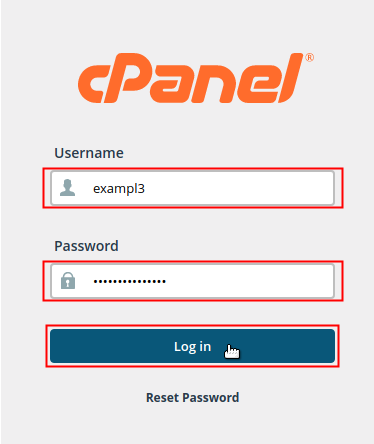
Be sure to log in with the cPanel user that owns the domain you are creating an A record for.

Locate the Domains section of cPanel and click on the Zone Editor icon.
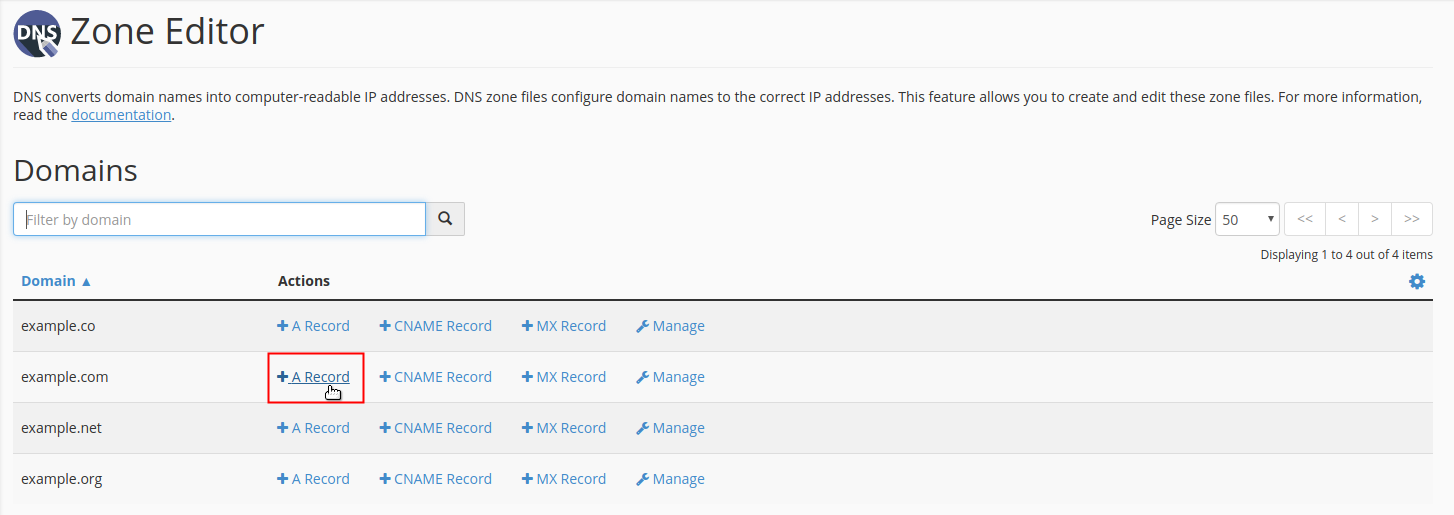
Find your domain in the list under the Domainheading. Under the Actions heading, click on the +A Record link that corresponds with the domain you want to add the A record for.
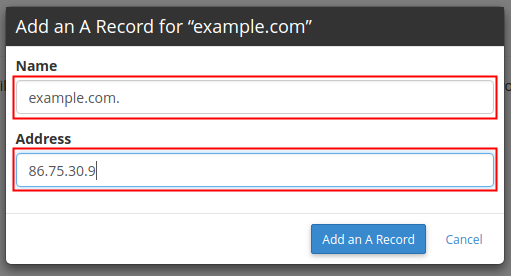
A pop-up dialog box will display for you to fill in the data fields for your A Record. Type the Name and Address of your A record into the fields accordingly.
NOTE: You may refer to the descriptions in the table below to determine what information you will enter for your A record. However, the values indicated are simply provided as sample data and should not be used as the actual values in your record.
| A Record | ||
|---|---|---|
| Field | Description | Value |
| Name | Enter the domain name that you are creating the A record for followed by a period. | example.com. |
| Address | Enter the IP address that you are pointing the A record to. | xx.xx.xx.xxx |

Click the Add an A Record button to save your changes.
NOTE: DNS changes can take 4-24 hours to take effect.